
Preparation
What you need
- Android 9 or later with USB host/OTG support.
- A USB drive with enough free capacity.
- USB-C directly or a data-capable OTG adapter.
- Photos and videos available locally; cloud-only files may need downloading first.
Safe workflow
Copy photos in five steps
- Unlock the phone, connect the drive and wait for Android to detect it.
- Open FotoSafe and grant access to the media you want to copy. Partial access on Android 14+ may show selected files only.
- Select the backup location and choose the USB drive in Android's system picker.
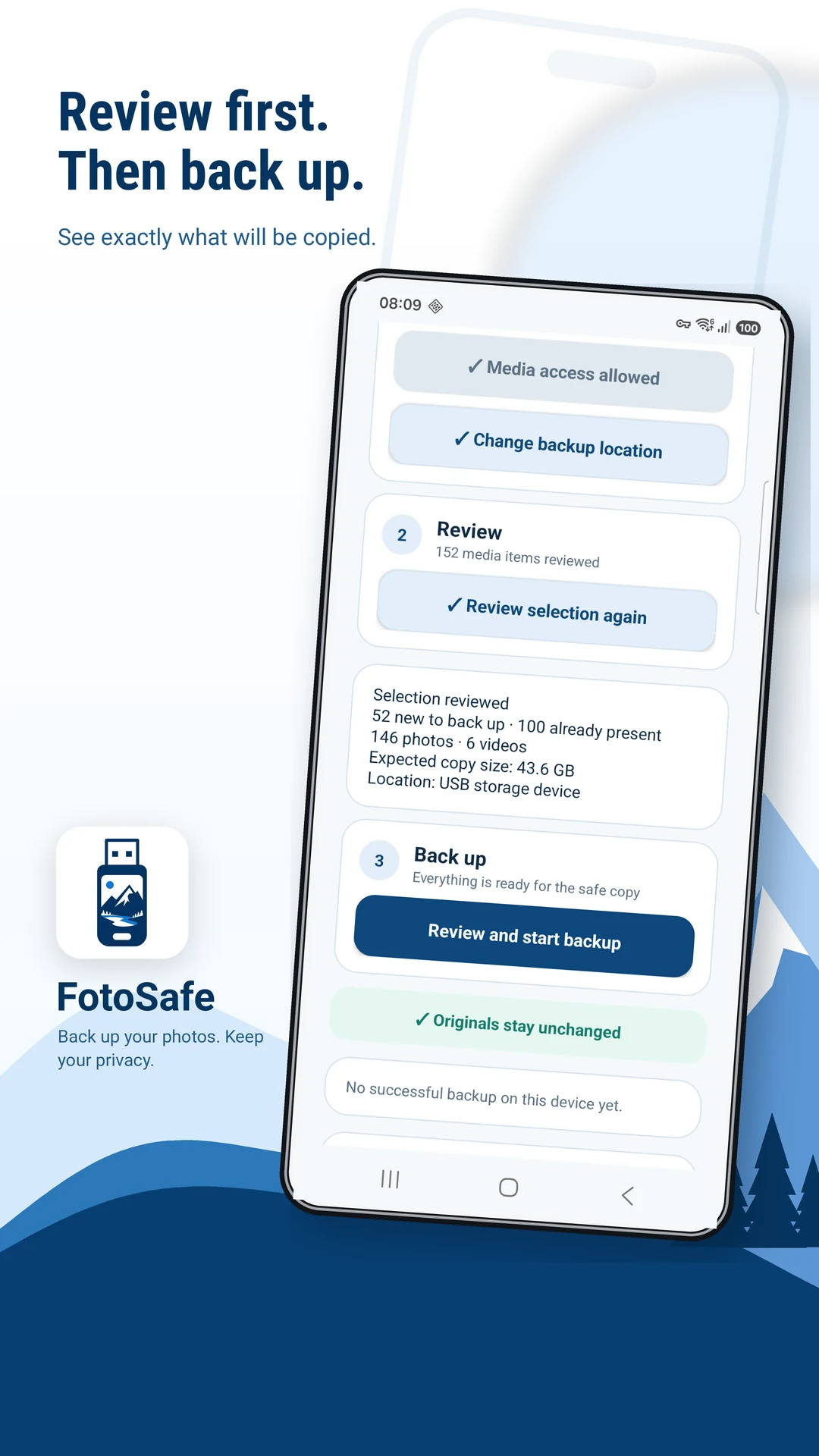
- Review destination, new files, already backed-up files and required space.
- Start the backup and keep the phone and drive connected until completion.
Afterwards
Copying is not moving
Originals remain on the phone. Open several new photos and large videos directly from the USB drive after the run.
A completion message is useful; a real file check is better.
Honest alternative
You can copy folders manually
Android file managers can often copy folders such as DCIM/Camera to USB for free. FotoSafe is useful when you prefer a guided, repeatable preview and automatic skipping of files already backed up.
Next time
Back up again without starting from zero
Reconnect the same destination for your next run. FotoSafe checks existing files and skips media already backed up, so you can focus on the new additions. Always review the destination and summary before copying.
Diagnosis
If the drive does not appear
- Reconnect and wait.
- Check whether Android's own file manager sees USB storage.
- Try a different data-capable adapter or smaller drive.
- Consider power requirements.
- Never format before safeguarding existing contents.
Decision aid
FotoSafe or a file manager: compare the work before you choose
A system file manager usually adds no purchase cost, but you select folders, track progress and resolve duplicates yourself. FotoSafe offers a guided preview and repeatable runs; one successful run with up to 100 media files is free, then further runs require the one-time Pro purchase.
| Decision | FotoSafe | File manager |
|---|---|---|
| Workflow | Guided destination, media preview and summary before copying | Find and select media folders manually |
| Later runs | Already backed-up files are identified and skipped | You decide which files conflict or need copying again |
| Control | Review selected counts and destination before starting | Inspect folders and copied files yourself |
| Cost | One free successful trial run; then a one-time Pro purchase | Android system function, usually at no extra purchase cost |
| Access | Needs access to the photos and videos you choose to back up | Needs access granted through the file manager and Android picker |
Android system picker
Choose the destination folder through the final permission step
- In FotoSafe, tap “Choose backup location” or “Change backup location”. The next file picker belongs to Android; its layout and labels vary by Android version and manufacturer.
- Open the side panel or storage overview if needed. Choose the connected USB storage entry, not the device name or “Internal storage”.
- On the USB storage, open an existing backup folder or create a dedicated folder such as
FotoSafe. - Check the storage and folder shown at the top. Tap “Use this folder”, then confirm the Android prompt with “Allow”.
- Back in FotoSafe, confirm that the displayed destination matches the USB drive before reviewing or copying media.
The USB volume name or an unambiguous USB label appears in the storage list or path, with your chosen folder beneath it.
The phone name, “Internal storage”, “Downloads” or “DCIM” is the top-level storage. Cancel and start again from the USB entry.
If USB is not listed
- Cancel, reconnect the drive and data-capable OTG adapter, then wait briefly.
- Check the manufacturer's file manager. If Android does not show the USB storage there, FotoSafe cannot select it.
- Do not format on a guess. Check the connection, adapter, power demand and compatibility first; formatting erases data.
- If “Use this folder” is disabled, do not force the storage root. Open or create a subfolder on the USB drive.
- If you denied “Allow” or selected the wrong destination, reopen destination selection in FotoSafe.
Check full media access
Android 14 and later may initially expose only selected photos and videos. If FotoSafe cannot see all media you intend to copy, open device Settings and look under Apps → FotoSafe → Permissions → Photos and videos for an option covering all photos and videos. Exact wording varies; grant only the scope you intend to back up.
Samsung/One UI fallback
On some Samsung devices, first open My Files and check whether “USB storage” or the volume name appears. Return to destination selection and open that same entry from the storage overview. Galaxy S23 is only an example represented by the existing German captures; it does not prove identical UI across Samsung, One UI or Android releases.
They show German FotoSafe/Galaxy-S23 examples but provide no capture date, English equivalent or proof of identical screens on other devices. The steps therefore teach observable decisions and explicitly variable system labels instead of promising one fixed layout.